If you have multiple products in your Nero account (e.g. Nero Platinum 2025, Nero Platinum 2026, or Nero Platinum Suite), Nero Platinum Suite is usually the default product and all applications in Start screen point to the individual applications in the product.
Of course, you have multiple choices for accessing other products in Nero Start.
Since Nero Start has two display modes, Smart-stack mode and Manual-choose mode, the methods for accessing other products differ between these two modes.
- *For a comparison of the two display modes, please refer to this article: How-to-personalize-your-nero-start
Display mode: Smart-stack mode
To access an older Nero application: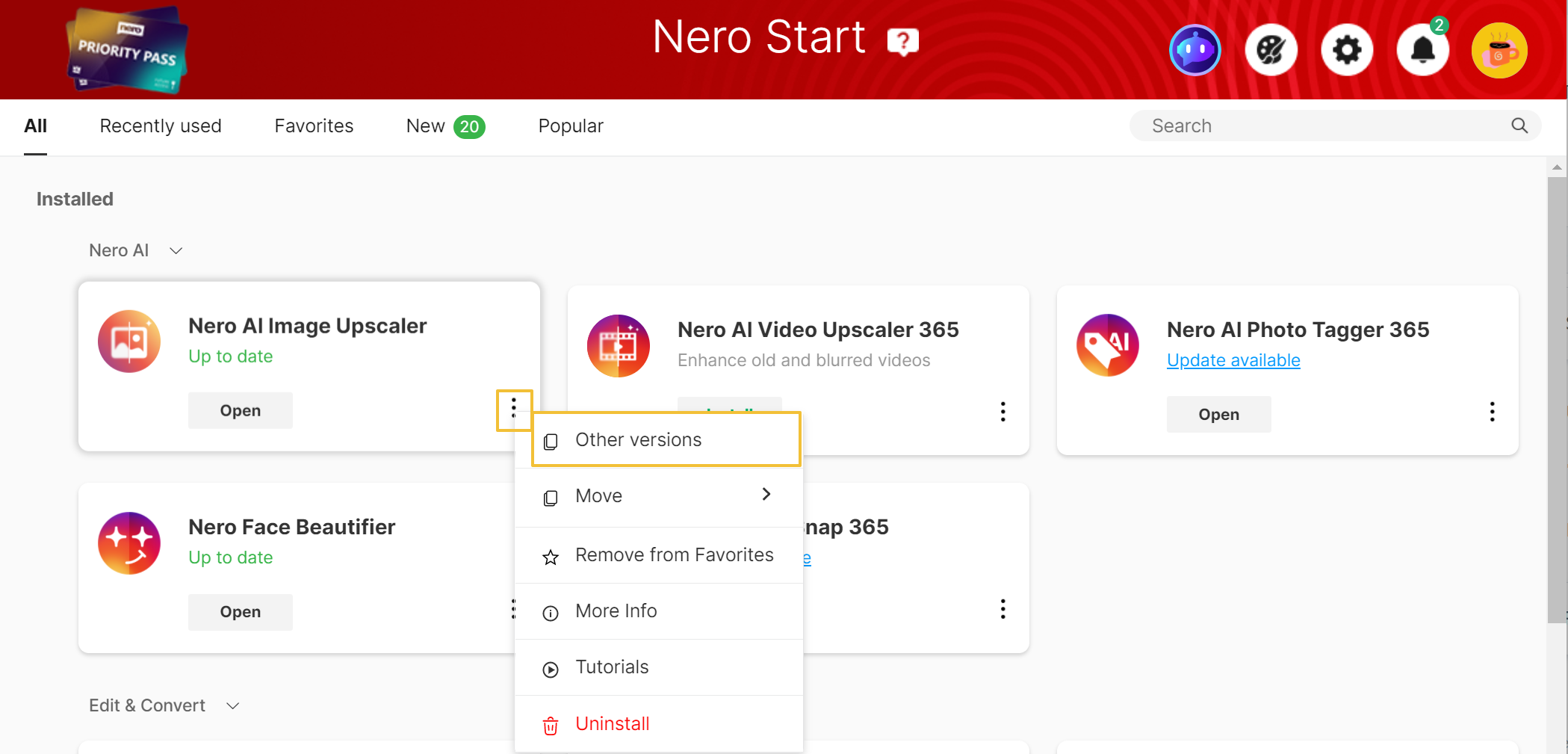
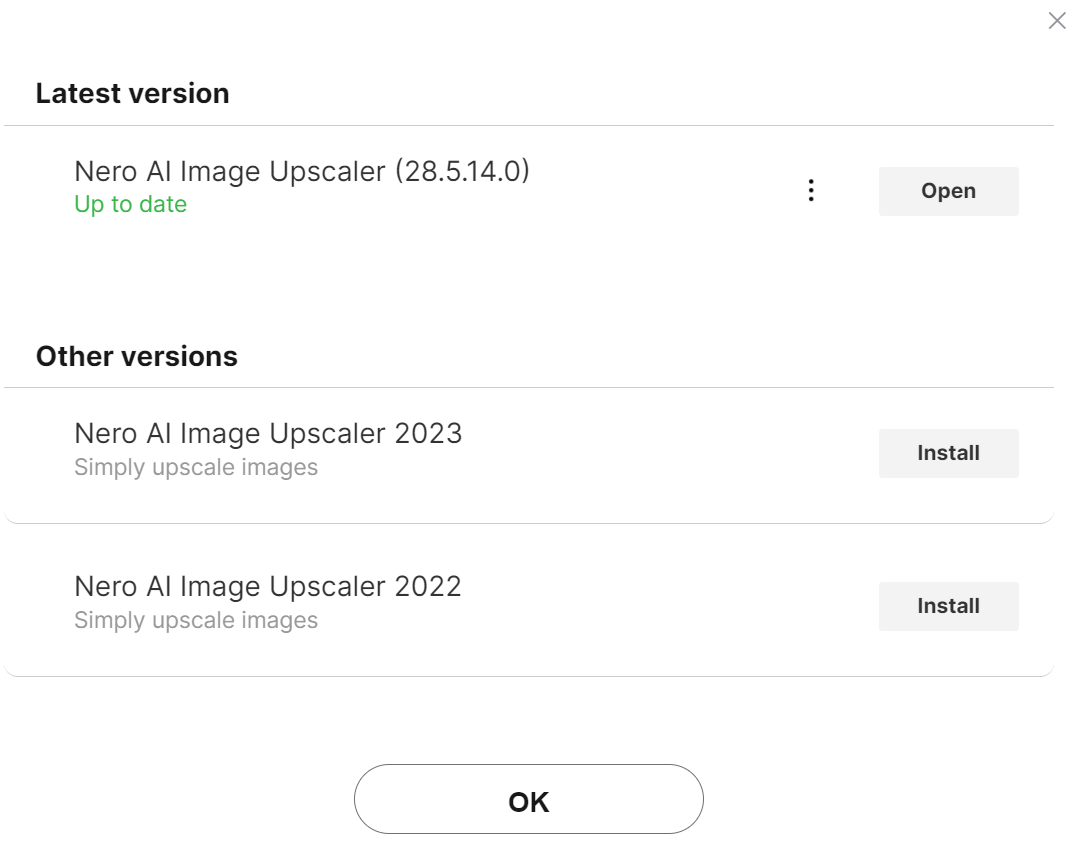
Navigate to the ‘More > Other Versions’ section in the app button. Here, you can effortlessly install, launch, or uninstall previous versions.
Display mode: Manual-choose mode
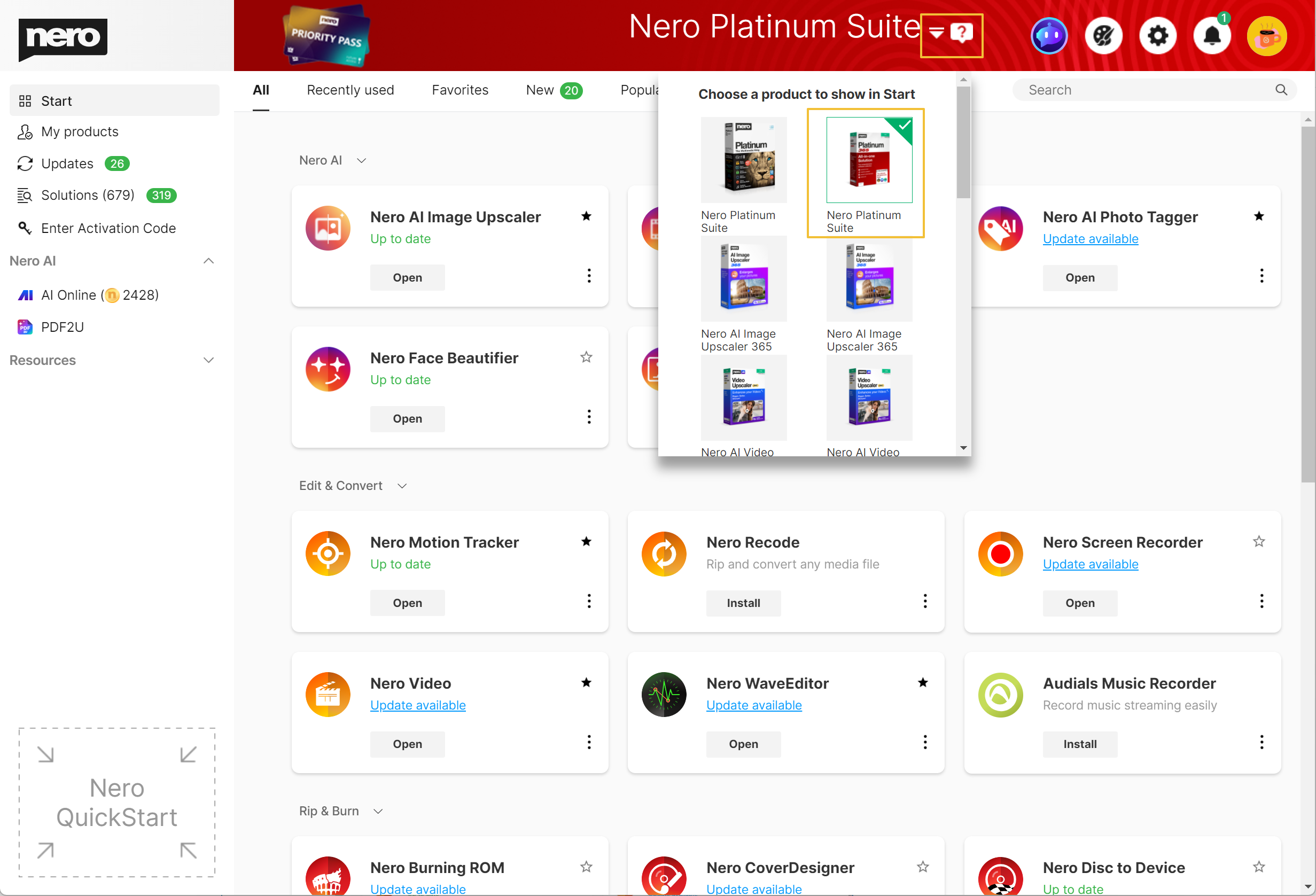
Way 1: Change products in the product list
- Click an arrow next to the product name -> A product list will expand and all valid products will be listed.
- Select the product you would like to run in the Start screen.
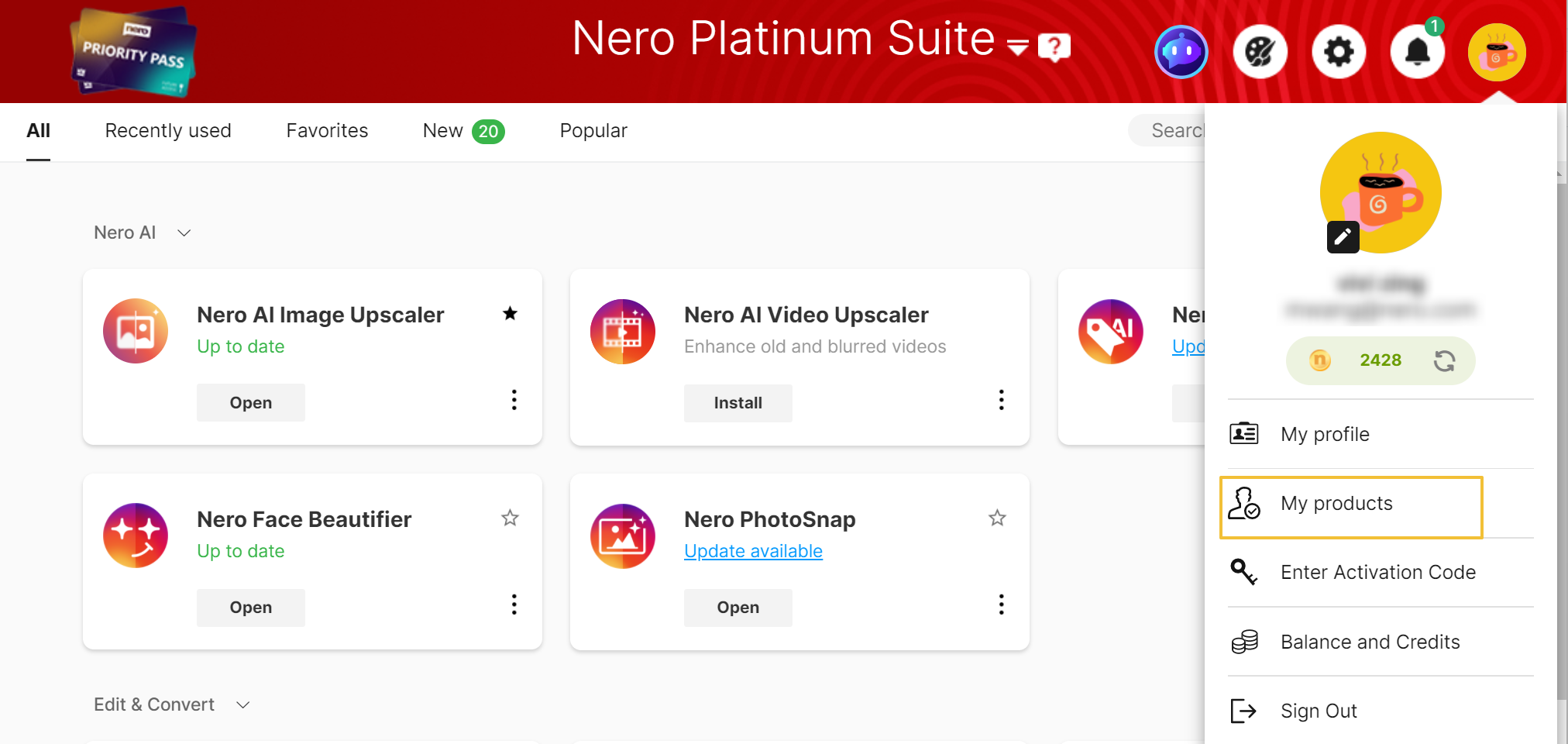
Way 2: Change products in the 'My Products' screen
- Click the Account icon in the top right corner, click My products link to My products screen.
- Turn on the product you would like to run in the Start screen.
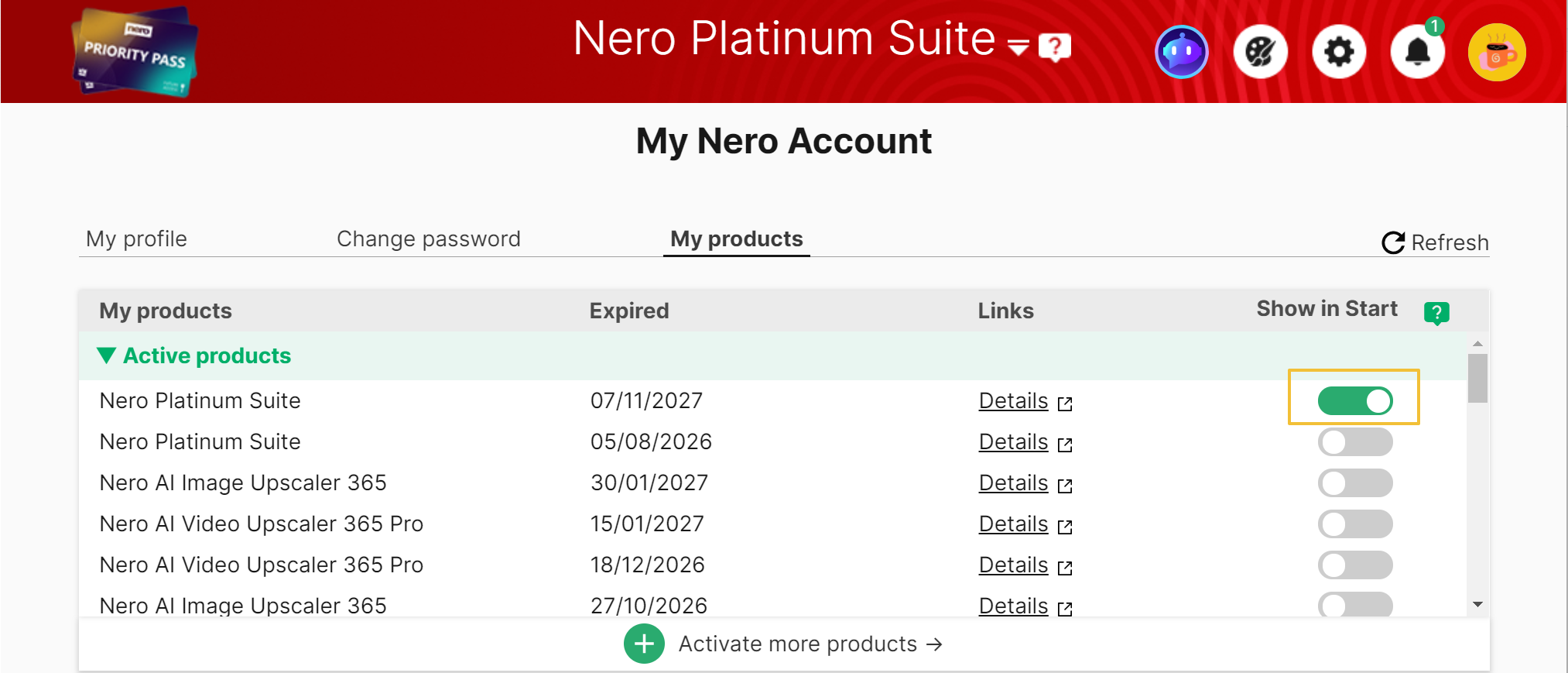
After the default product is changed, (e.g. change from Nero Platinum to select Nero Platinum 2026), you can find all applications in the Start screen point to the applications of Nero Platinum Suite 2026. What’s more, the updates also change to the given default product.
BTW, you could run all the installed Nero program from Windows Start Menu.