To change the language in OnlineTV, follow these steps:
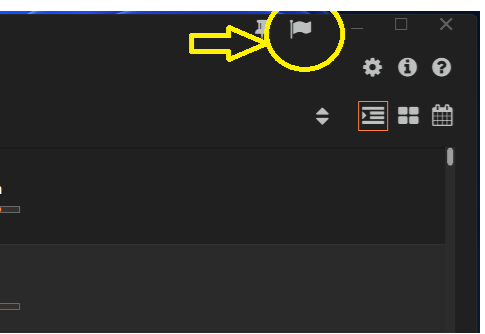
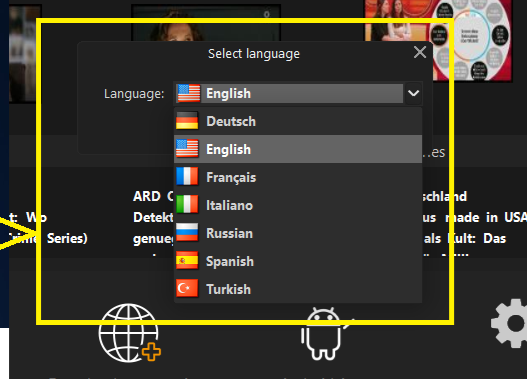
Click the flag icon in the top right corner. A "Select Language" dialog box will appear.
Choose the language from the list.
Alternative Method via Registry Editor
If the language selection dialog does not open, try the following method:
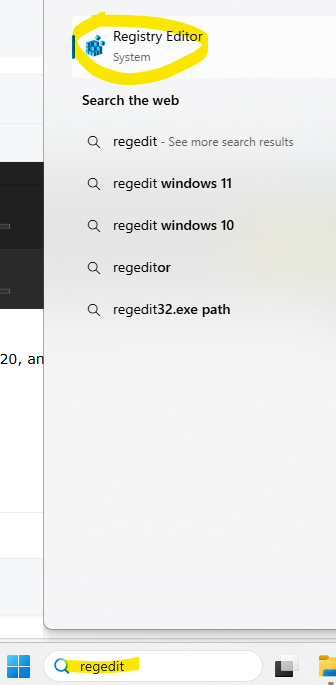
In the Windows search box, type regedit and open Registry Editor.
2. Navigate to the following path:Computer\HKEY_CURRENT_USER\Software\concept/design\onlineTV20\Settings
3. Double‑click the Language entry and change its value to English.lng.
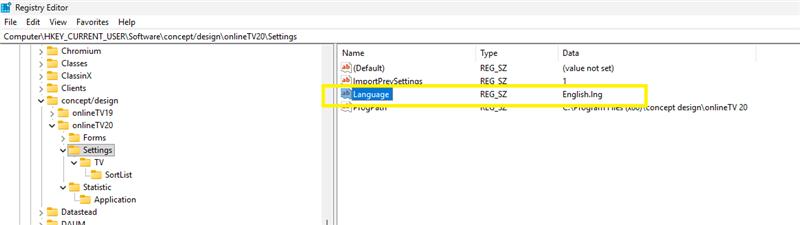
Once done, restart OnlineTV 20 and the interface should now be in English.